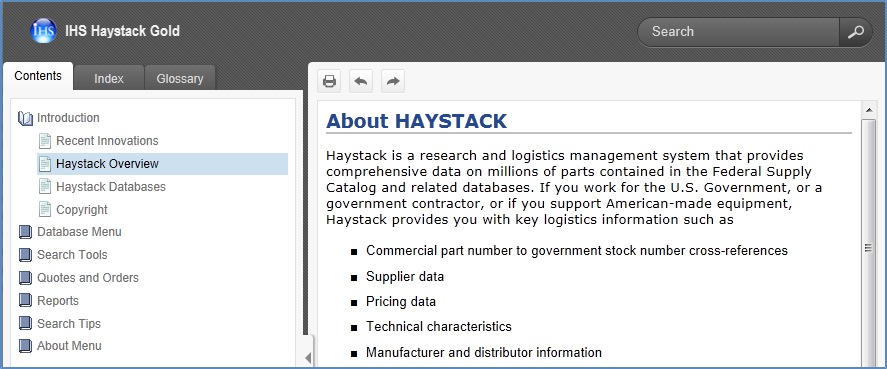
When Haystack Gold displays the HTML5 version of the Help, you see tabs for Contents, Index, and Glossary on the left, and a Search feature on the right. This version of the Help appears if your browser is Internet Explorer version 8.0 or later, Firefox version 10 or later, or Chrome version 13 or later.
From any page in Haystack, you can see the Haystack banner, tabs and search feature. Click the Contents, Index, and Glossary tabs to display the contents in the pane.
The Table of Contents lists the main and subtopics about Haystack in a sequence that progresses from an overview and general information to specific information about the tabs, windows, functions, and features in Haystack.
In the Index pane, click a term, and the associated topic opens in the right pane.
Hover your mouse over the image to enlarge it.
If there is more than one topic for a term, a pop-up window will list the topics. Click the topic you want to see displayed.

The Glossary lists over 1000 terms in alphabetical order. When you click a term, a pop-up window appears with the definition of the term.

Enter a search term in the search field, and then click the icon to the right. Haystack returns a list of each topic containing your search criteria with a link and the first few lines of the text in the topic. Click the topic you want to review.

Click the print icon to print the current page, which can be a topic or a search list.
Click the Navigate previous and Navigate next icons to move through the topics as they are listed in the Contents.